When working with a custom recovery like TWRP on your android phone for flashing custom ROMs, GApps packages and other functions, one of the most common issues is that internal storage shows 0 MB. This makes it impossible to access or flash any files. The good news is that it can be fixed without the need of a rooting expert. This tutorial will explain multiple method on how to fix TWRP internal storage 0 MB issue.
Reason Behind TWRP Internal Storage Issue
Before we get into on different processes to fix TWRP internal storage issues, you should understand the underlying reasons that causes this problem which in turn will help you in picking the right solution.
- Outdated or incompatible TWRP build which doesn’t match your phone’s partition layout or Android version.
- After flashing a custom ROM or performing a factory reset from within TWRP, file system corrupts on your data partition and subsequently, TWRP internal storage shows 0 MB.
- TWRP sometimes fails to decrypt the internal storage due to File-Based Encryption (FBE) which can also trip this up causing it to display as 0 MB.
- Sometime, a flash that got interrupted halfway through will leave your data partition in an unreadable state.
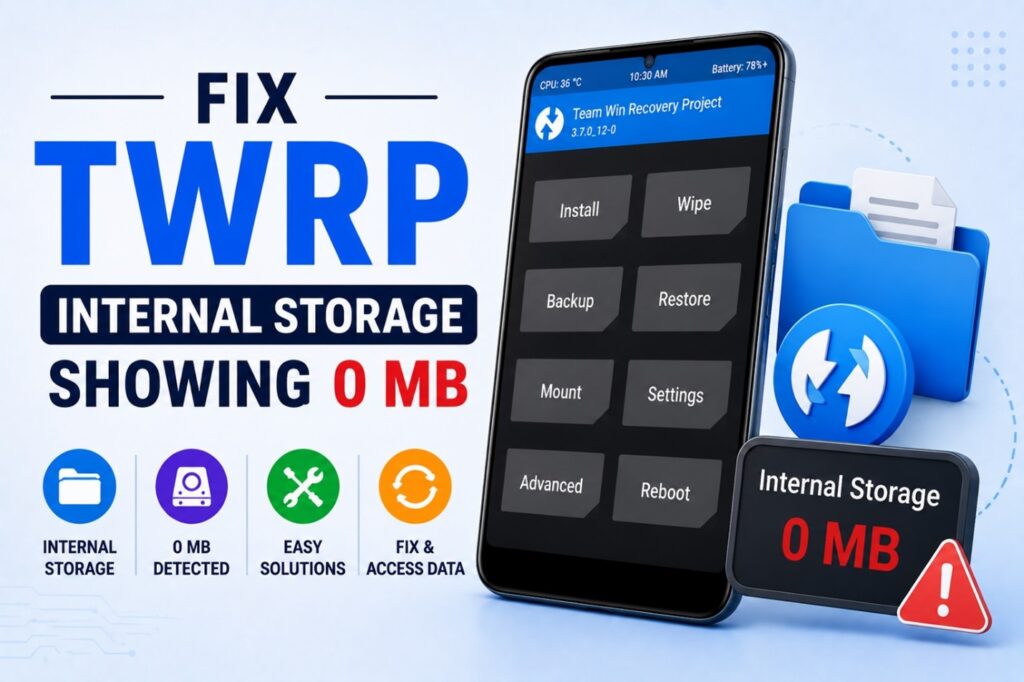
Fix TWRP Internal Storage 0 MB Error
1: Disable Pattern Lock
- One of the simplest solutions of this problem is to change the pattern lock to either a PIN or password. This fix can save you the hassle of formatting data and can be executed within seconds.
- Go toSettings > Lock screen > Screen Lock.
- Disable the pattern/face lock and you can enable PIN or password if needed.
- Boot into TWRP recovery and check that the internal memory is fixed or not.
2: Correct TWRP Build
- The very first fix which should be tried first is to check whether you have installed the correct TWRP build meant specifically for your device model and variant.
- Visit official TWRP site, or check your device’s thread on XDA Developers, and find the recovery image built specifically for your exact model and variant.
- Download this file and connect your phone to your PC. Flash this correct TWRP image using fastboot and run the command fastboot flash recovery twrp.img.
- Boot back into recovery and check if the internal storage is now detected properly.
3: Format Data
After using correct build, the TWRP internal storage shows 0 MB again, formatting your data partition usually clears up any file system related errors.
- In your phone, Boot into TWRP and head to the Wipe menu.
- Skip the regular “Swipe to Wipe” option and instead, tap Format Data and type “yes” when it asks you to confirm.
- This will wipe out encryption and reformat the internal storage to a readable file system.
- After this, reboot into recovery again, and your storage should now show the actual storage capacity.
4: Disable Forced Encryption
Sometimes the stock firmware of the device has the encryption enforcement policies which is responsible for this error.
- Donwload a DM-Verity and Force Encryption disabler zip that matches your Android version.
- You can Flash it straight from TWRP’s Install section.
- Reboot recovery and verify if the forced encryption was the problem. Your internal storage should now be visible.
5: Reflash Stock Firmware
If the error still exists after trying all the above solution, then there’s a chance the partitions themselves are damaged which a simple format cannot fix.
- For your exact device model, download the official stock firmware straight from the manufacturer’s website.
- Flash the tock firmware by using Odin (for Samsung) or respective equivalent tool for your brand.
- This will reset everything back, restoring partitions to their default. After this, you can unlock the bootloader and flash TWRP again.
6: Check Your Cable and USB Connections
- One thing which is overlooked is that how TWRP is reading the connected external storage and is confused between TWRP internal memory and OTG.
- Unplug all USB cable, OTG drive, or SD card connected in, while you’re in recovery.
- After disconnecting, boot into TWRP and check again the internal storage showing correct storage.
Conclusion
When TWRP internal storage shows 0 MB, this might be frustrating but it can be fixed in almost all cases. Employ the solutions mentioned above by using the correct TWRP build, then move on to formatting data and work your way down the list if that doesn’t cut it. Just remember to back up your data beforehand since most of these fixes will end up wiping your phone clean. We hope you find this tutorial helpful. If you wish to have a step-by-step tutorial on any android related topic, please contact us using the Contact Us page.