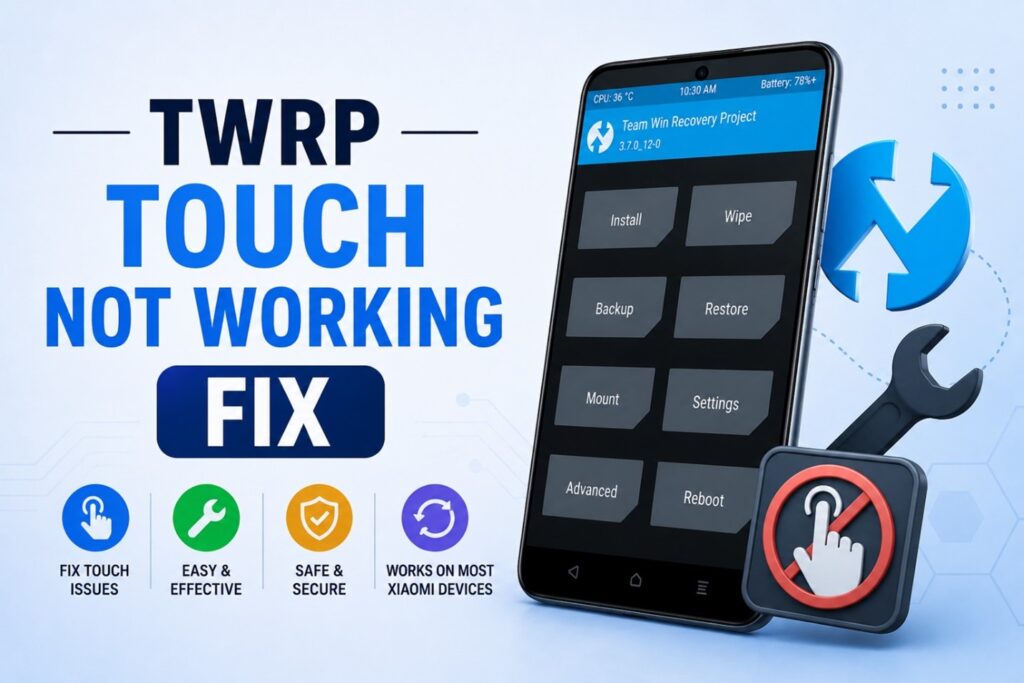
One of the most popular custom recoveries software used by Android users is TWRP (Team Win Recovery Project) which is useful for multiple purposes like custom ROMs, backups and installing mods. Most common issues with TWRP is the unresponsive screen after TWRP installation. In such cases, touch input stops working and display freezes. This is a frustrating problem as you cannot navigate the menu or flash any file. In this tutorial we will you through a step by step guide on how to fix TWRP touch not working.
Correct TWRP Version Flashing
The number one culprit is that different regions or slightly different hardware can have multiple variants, and each variant might use a different touch panel. If you have flashed an incompatible version of TWRP with your device model or variant, touch issues are almost expected.
- Use the official TWRP site to check your device’s specific thread on XDA Developers. From the forum thread of your device, find which build works for which variant.
- After finding the right file, boot into fastboot mode and flash the TWRP image using the command fastboot flash recovery twrp.img
- After this, boot straight into recovery and see if touch responds now.
Use Buttons for Navigation
The second fix in the tutorial TWRP touch not working is the use of mobile buttons for quick navigation.
- Use Volume Up and Volume Down buttons to move in selection menu.
- Select the option in menu using the Power button which will confirms your choice.
- This method has its own limitations, but is enough to let you flash a corrected recovery file.
- If the corrected recovery file is flashed successfully, navigate to install and flash the corrected TWRP zip file or image which will solve the problem of TWRP touch not working completely.
Kernel Compatibility Issues
In some cases, the problem isn’t the TWRP version itself but how it was built against the correct kernel source of your device.
- The touch drivers will not load properly If the recovery wasn’t compiled against the right kernel source for your chipset.
- Community builds can solve this problem. Find developers on XDA or Telegram groups dedicated to your device which often patches these kinds of bugs. Search for an updated or “unofficial” build that specifically mentions fixing touch problems relevant to your chipset.
- After finding the suitable build for your device, flash it using fastboot or another existing working recovery, reboot into recovery to check whether TWRP touch not working problem is resolved.
Use a USB OTG Mouse as a Workaround
Another fix for this problem is using an external mouse to access the menu.
- Connect a regular USB mouse to your phone with a standard OTG (On-The-Go) cable, and boot into TWRP.
- A small circle cursor will pop up on screen almost immediately, helping you in clicking around just like you would on a computer.
- This is a simple fix and works wonders for backups, flashing a new recovery, or just navigating menus.
Try the adb sideload Method Instead
Skip the GUI entirely and work with ADB sideload which is a solid way around this problem.
- First of all, connect your device to your computer, boot into TWRP, and select Advanced > ADB Sideload option on your device (can be done with button navigation if required).
- On your PC, open a terminal and type: adb sideload filename.zip
- This will transfer the file directly from your computer to your device and installs it automatically.
- Use this method if you just need to flash a ROM, any zip file or a fixed TWRP image without requiring use of touch screen at all.
Alternative Custom Recovery
- If you have tried multiple method to fix TWRP touch not working problem, then try different recoveries like OrangeFox or PBRP (Pitch Black Recovery Project) which are solid alternatives.
- Sometimes these recovery software handle touch drivers better on devices where TWRP struggles. You can flash them in similar manner as TWRP.T
The device brand, chipset, and Android version all play a crucial role in varying touch problems. Most common cases of this problem can be resolved by fixes mentioned above. We hope you find this guide helpful. If you wish to have a step-by-step tutorial on any android related topic, please contact us using the Contact Us page.
For more on android tutorials keep tuned in to How to Android Tutorials.