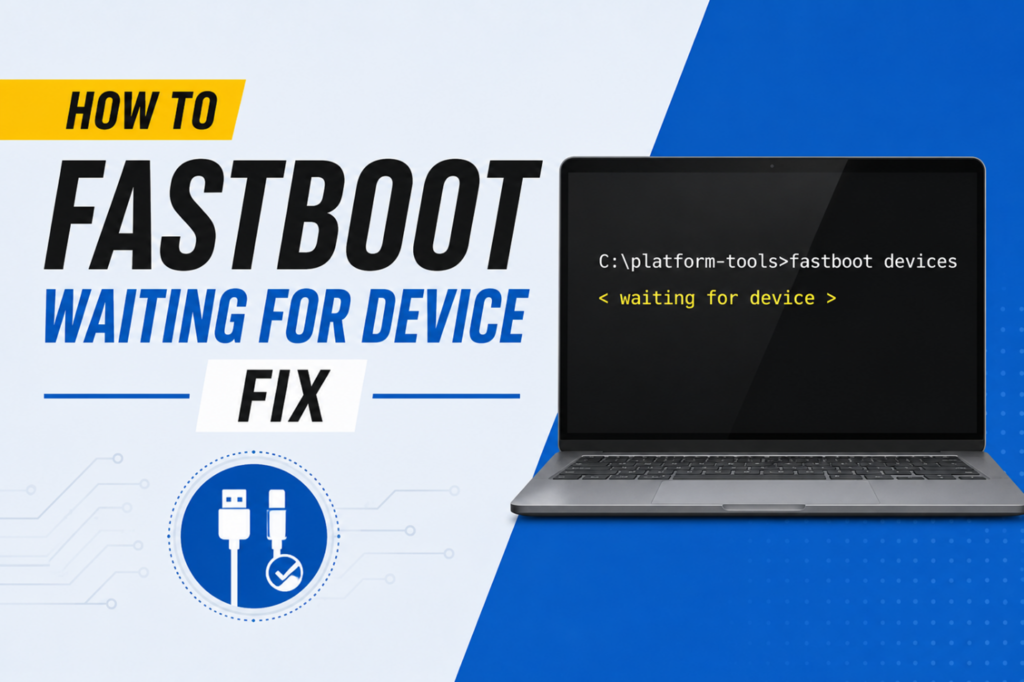
You rely on fastboot commands to communicate between your PC and your phone. It is also used for multiple tasks to flash custom recovery, unlock bootloader or install custom ROMs. However, many users face a problem of “waiting for device” message which pops up after entering a command. This problem usually arises when your computer cannot detect the android device in fastboot mode. Follow this tutorial to fix Fastboot waiting for device error.
Get the Correct USB Drivers Installed
- In most cases, the main reason behind this error is missing or outdated USB drivers, especially when you are using Windows.
- To resolve this issue, open the Device Manager and click on Other devices. You can find the option of “Android” here with a little yellow warning triangle sign.
- This triangle indicates that driver is either missing or not installed properly
- Right-click it, choose Update Driver, then Browse My Computer for Drivers. Install the official driver provided by your device manufacturer.
- When browsing for drivers your computer, you can also select the option of “Let me pick from a list of available drivers on my computer”. After selecting it, go to Android Device in common hardware types and hit Next. You will be presented with some options of drivers here, just click on Next and Windows will successfully install the driver.
- Once that’s done, restart the PC and connect your phone back while it’s in fastboot mode. Check if it is detected properly or not.
- In most cases, this will resolve the error i.e. Fastboot waiting for device.
Turn On USB Debugging and OEM Unlock
- In order for you PC to recognize the device, you need to enable USB debugging and OEM unlocking.
- Head to Settings > About Phone, and tap Build Number about seven times. A message will show up stating you’re now a developer.
- Go back out to Settings > System > Developer Options and switch on USB Debugging.
- Also enable OEM Unlocking when you are in Developer Options, Fastboot commands will not work without it.
- Connect your phone back and tap “Allow” when the USB debugging permission prompt popup is shown. Check if the device Is detected or not.
Test Cable and USB Port
- You can alos check the hardware instead of leaning on the software side of things as they can also cause the error of Fastboot waiting for device.
- Use the original cable of your device rather than a cheap third-party cable which usually fails to form a proper data connection.
- Use rear USB port if you are working on a PC instead of Laptop as the front panel or hub tend to be faulty.
- You can also check the cable and usb port if you have a spare android device which will confirm whether the problem lies with your PC or your phone.
Update Your Platform Tools
- Old fastboot binaries or platform tools on you PC also cause this error.
- Grab the newest Android SDK Platform Tools from Google’s developer site.
- Unzip it to an easily accessible location.
- Open a command prompt right inside this new folder, and run your commands from there, instead of the outdated folder.
- Type command fastboot devices and see if your phone finally shows up in the list.
Make Sure You’re Actually in Fastboot Mode
- Human error can also lead to this situation of Fastboot waiting for device, as many users end up mixing up bootloader mode and fastboot mode.
- Power you phone off , and then hold Volume Down and Power simultaneously until you land on the bootloader screen.
- Look closely at the text on screen, it should say Fastboot Mode specifically, not just “Bootloader” or “Recovery.”
- If you get confused with buttons, try running the command adb reboot bootloader from your PC while phone is connected and USB debugging is on.
The menu and options described here can vary depending upon the the brand and the version of Android you are using. However, the general idea stays the same across the board. If you wish to have a step-by-step tutorial on any android related topic, please contact us using the Contact Us page.
For more on android tutorials keep tuned in to How to Android Tutorials.