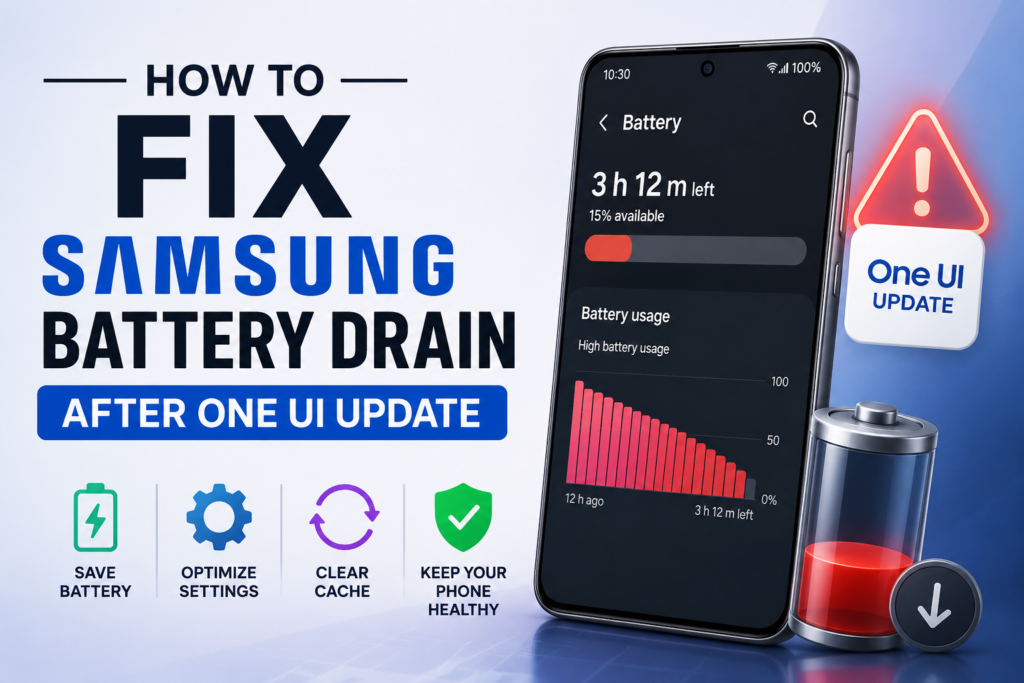
After the One UI update on Samsung devices, many users reported to have massive battery drainage. This led to charging the phone multiple times a day even with little to no usage. Reddit and other forums reported that the battery drainage issue particularly happened with Samsung device. It is important to understand why this happened and how we can fix it.
Reason for Samsung Battery Drain After One UI Update
Whenever we received a significant UI and system update, the operating system takes time to adjust and optimize the performance of the device. Depending upon your usage, the amount of data you are holding and your device’s storage consumption the operating systems adjust itself so that it can perform in a efficient way and this takes time. Same thing happened with Samsung, in most cases the Samsung battery drain after One UI update went away on its own after 5 to 7 days. However, in some cases the situation persisted and people kept facing the Samsung battery drain after One UI update.
If you are one of those individuals then no worries, we have got a solution for you. Follow our step by step guide below to fix the Samsung battery drain after One UI update.
Samsung Battery Drain after One UI Update – Fix
To make sure we cover each and every aspect regarding the fixing the Samsung battery drain issue, we have divided the steps into 4 major categories which are as below:-
System Cache
- One of the easiest and go-to method is to clear the system cache. Any previous corrupted file will require more processing time, thus, causing the phone to heat-up and drain battery. To clear the system cache, turn off your device and connect it to your computer using USB cable.
- Press and hold the power one button + volume up button till the time Samsung logo appears on the screen.
- Once you see the Samsung logo, release the buttons. Your device has now entered in Recover Mode.
- Use the Volume up and Volume down buttons to navigate and Power button select. Go to Wipe Cache Partition and select it.
- Perform the Wipe Cache Partition by selecting Yes and then select the Reboot System Now to restart your Samsung device.
Optimizing Apps
- It is also important that apps are updated and optimized to the code base of One UI. For that, you will have to update all the Samsung system apps.
- Go to Galaxy Store, select Menu and then select Updates to update all of your system apps.
- We have to do the same for Google Play Store as well. Go to Google Play Store and then go to Manage Apps & Devices by navigating to your profile. Then update all the apps you have downloaded.
- Finally, go to Settings > Show System Apps. Look for One UI Home and then Clear the cache by going to Storage.
Recalibrate Battery
- One more thing that you can do to fix the Samsung battery drain after One UI update is to calibrate your battery settings. For that, dial *#9900# on your Samsung device, this will open the SysDump menu.
- Go all the way down and select Batterystats reset and then restart your phone.
- Once the phone is powered on, go to Settings > Battery and then Background usage limits.
- Turn on the Put unused apps to sleep. Furthermore, go to Deep sleeping apps and add the apps to deep sleep that you don’t commonly use.
Performance Profile
- You also need to switch the performance profile of your device to Light. For that, got to Settings > Device Care > Performance Profile and select “Light”.
Hopefully, this will resolve the issue of Samsung battery drain after One UI update. Please let us know in the comments below what issues you faced and did the guide provided helped you or not. Your feedback will further improve our investigations. For more on android tutorials and updates stay tuned to our website.